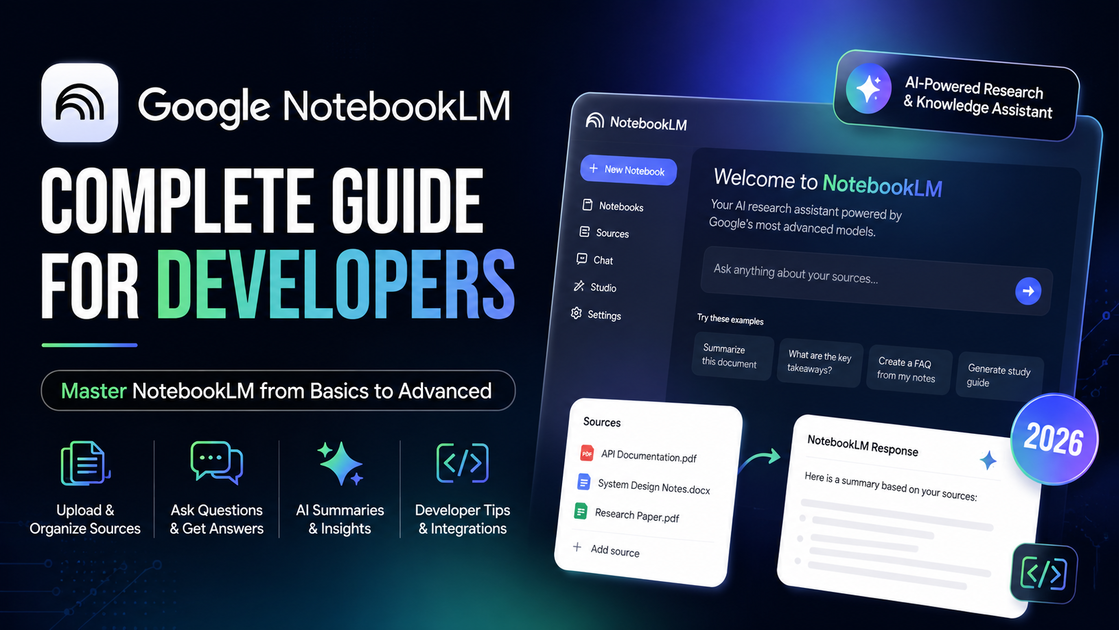
Google NotebookLM Complete Guide for Developers (2026)

Aneh Thakur
·11 min read
Author: Aneh Thakur · Last updated: 2026-07-05
Google NotebookLM began as a document viewer with a chat box. The 2026 release line treats it as a source-bound assistant running on Gemini. Engineers should care about one design choice: responses are constrained to files and links you attach, and each claim links back to a passage you can audit.
This guide documents a repeatable setup for technical learning and internal research. Workflows below were tested on 2026-07-05 in a standard free Google account.
What you'll learn
How NotebookLM differs from ChatGPT-style chatbots (source-grounded answers with citations)
How to add mixed sources: PDFs, websites, public YouTube videos (with captions), Google Drive files, pasted text, and web search results
How to pipe Gemini answers into a notebook as persistent context
When to use Fast Research vs Deep Research
How to use Configure chat for style and response length
How to generate Studio outputs (slides, flashcards, quizzes, infographics, data tables, video overviews)
How developers can pair NotebookLM with Claude for prompt-driven automation (unofficial workflow)
Prerequisites
A Google account (NotebookLM is free at notebooklm.google.com)
Modern browser (Chrome recommended for Google Drive integration)
Optional: Gemini access for cross-tool notebook creation
Optional: Claude account if you plan to connect an external agent workflow
Sample material to test with: one PDF, one YouTube URL, or one technical blog post
No API key is required for the core NotebookLM features described here.
Step 1 — Create a notebook and add sources
NotebookLM organizes work into notebooks. Each notebook is an isolated knowledge base. The model only answers from sources you attach — that constraint is the product's main strength for engineering work.
1. Open notebooklm.google.com and click Create notebook. 2. Name the notebook something specific, e.g. Netflix Business Model Research or React Server Components Docs. 3. Open the Sources panel. Per Google’s source documentation, supported inputs include: - Upload — PDFs, images, audio files (transcribed on import), and other supported file types - Website — paste a URL (HTML text only; paywalled pages are not supported) - YouTube — public videos that have captions (manual or auto-generated) - Google Drive — Docs, Slides (up to 100 slides), Sheets (with token limits) - Pasted text — copy content into a new source - Fast Research / Deep Research — discover web or Drive sources from a query
Free-tier limits (verified): up to 50 sources per notebook, each up to 500,000 words or 200MB for uploads.
Example: add a YouTube source
Paste a public watch URL in the YouTube source field and click Insert. Google requires the video to have captions; imports fail if captions are missing or the language is unsupported.
Developer tip: Create separate notebooks per project. Mixing unrelated sources (say, Kubernetes docs and a product roadmap) dilutes answer quality. One notebook per feature, RFC, or learning goal keeps citations tight.
Step 2 — Ask questions with fast vs deep research
Once sources are loaded, use the chat panel to query your notebook.
Type a question scoped to your imported material:
Summarize rate-limit headers and retry guidance across these API specs.NotebookLM offers two discovery modes when adding sources (official docs):
| Mode | Latency | When engineers use it | |------|---------|------------------------| | Fast Research | Usually under a minute | Quick web or Drive source discovery | | Deep Research | Several minutes | Agentic browsing; imports cited and uncited sources from a multi-page report |
Fast mode proposes a handful of web pages; you choose which to import. Deep mode drafts a research plan, gathers dozens of pages, and labels which ones were cited versus merely read.
Why numbered references matter
Returned paragraphs include superscript-style markers. Selecting a marker scrolls the UI to the supporting excerpt. When preparing design docs, copy the marker index into your own notes so reviewers can audit claims quickly.
Skip trusting uncited sentences — add a primary source and ask again.
Step 3 — Configure chat for your workflow
Open Configure chat in the Chat panel (official steps). Settings confirmed in Google Help:
Conversational style — presets for research, learning, or custom goals
Response length — shorter or longer answers
Output language — separate language settings also apply to Studio outputs
Example custom instruction for dev docs:
You are a technical writer. Answer only from provided sources.
Format: summary, key APIs, limitations, open questions.
Flag anything not explicitly supported by sources.
Re-run the same question after changing instructions — output style changes noticeably while citations stay grounded.
Step 4 — Studio: one corpus, many export formats
Open the Studio sidebar after your corpus feels complete. Think of Studio as a formatter layer: it does not hunt new facts, it packages what you already imported.
| Export | Suggested engineering use | |--------|---------------------------| | Audio overview | Review architecture decisions during a walk | | Slide deck | Kickoff deck for migration projects | | Long video summary | Onboarding clip for new hires | | Mind map | Map microservice boundaries | | Written report | RFC appendix for leadership | | Flashcards | Memorize CLI flags and error codes | | Quiz | Brown-bag knowledge check | | Infographic | Status update for LinkedIn or internal wiki | | Sheet-ready table | Benchmark latency or cost figures |
Practical Studio workflow
1. Write a direction sentence (audience + outcome). 2. Select only the sources relevant to that outcome. 3. Generate, then spot-check five random claims against citations. 4. Export (PDF, PPTX, MP4, or Sheets) and edit branding offline.
Audio formats include brief, critique, debate, and deep-dive tones. Video Overviews support Explainer (broader language support), plus Cinematic and Short (~60 seconds) formats — the latter two require Google Pro or Ultra and are English-only as of Google's Video Overview documentation.
For slide exports: download PPTX, open Google Slides → Import slides, select all, adjust fonts to match company templates. This beats copying bullets manually from chat.
Infographics expose layout presets (including grid-style frames). Flashcards and quizzes accept difficulty and count settings — handy when onboarding juniors onto a service your team owns.
Guardrail: If Studio invents a metric you cannot trace, delete that source bundle and regenerate with tighter inputs.
Step 5 — Pull external context from Gemini
Google documents a Notebooks in Gemini Apps flow: chat in Gemini, then add responses or create a notebook from Gemini. You can also paste Gemini answers into NotebookLM as sources via the add-to-notebook actions described in Google's source guide.
Import multiple talks: add each public YouTube URL separately (Google documents single-video imports with captions, not whole-channel URLs). Alternatively, run Fast Research or Deep Research to discover related pages and import them in bulk.
After import, ask narrow follow-ups (List five edge cases mentioned across these sources) instead of broad prompts that encourage guessing.
Step 6 — Optional: pair NotebookLM with Claude (unofficial workflow)
Not verified on Google's official docs. This is a third-party workflow some teams use — not a built-in NotebookLM feature.
Some teams manually connect Claude as an orchestrator on top of notebooks they already curate:
1. Keep NotebookLM as the grounded knowledge base (sources + citations). 2. Use Claude as the orchestrator that triggers summaries, deck generation, or research plans. 3. Store reusable prompts and sample files in a shared workspace your team can copy.
Exact connector setup is community-driven and changes frequently. Do not document specific Claude plug-in steps unless you have tested them and labeled them unofficial.
Suggested Claude prompt pattern:
Given my NotebookLM notebook on [TOPIC], produce:
1) A 5-bullet executive summary
2) A troubleshooting checklist for [SCENARIO]
3) Three common questions junior devs would ask
Cite which source types each bullet should come from.
Review Claude output against NotebookLM citations before publishing anything externally.
Example: feeding NotebookLM summaries into an MCP workflow
Suppose you maintain an MCP server that exposes internal runbooks. NotebookLM does not speak MCP natively, but you can bridge them manually until Google ships deeper integrations:
1. Import runbook PDFs and postmortems into a notebook named payments-oncall. 2. Ask for a structured incident checklist with citations. 3. Copy the checklist into a markdown file inside your MCP repo. 4. Point the MCP resource handler at that markdown path. 5. In Cursor, invoke the resource during incident triage.
{
  "resource": "runbook://payments/incident-checklist",
  "mimeType": "text/markdown",
  "description": "Grounded checklist exported from NotebookLM corpus"
}
This pattern keeps MCP responses aligned with documentation your team already approved. Update the notebook monthly, re-export, and bump the MCP resource version.
For India-based teams on metered bandwidth, batch Studio exports overnight. Download once, share via Drive, and avoid regenerating identical decks during standup hours.
Security and privacy notes for teams
Confirm your org allows Google AI features on sensitive drives.
Prefer redacted PDFs over full contract dumps.
Rotate notebooks when projects sunset — old sources linger until deleted.
Treat exported MP4/PPTX like any internal doc (watermark, access control).
Step 7 — NotebookLM in a developer toolchain
Raw sources → NotebookLM (understand + cite) → Cursor/Claude Code (implement) → Git PR| Tool | Role | |------|------| | NotebookLM | Ingest PDFs, talks, and blogs; produce cited summaries | | Cursor | Edit repositories with repo-aware context | | MCP servers | Connect live APIs (GitHub, Linear, databases) |
NotebookLM will not replace MCP or IDE agents. It reduces time spent reading fifty bookmarked tabs before you open an IDE.
Pre-import checklist
Before adding a source, confirm:
1. License — redistribution rules for shared notebooks 2. Version — docs match the library version in your repo 3. Duplication — one canonical spec beats five blog reposts 4. Freshness — stale release notes produce stale answers
Following the checklist keeps Studio exports usable for teammates.
Troubleshooting
Sources fail to import from a website
Cause: Paywalls, JavaScript-only pages, or robots restrictions block scraping.
Fix: Export the page as PDF, save a markdown copy, or paste the core text as a uploaded file. Prefer official doc PDFs over fragile scrapes.
Deep research returns irrelevant pages
Cause: Broad question phrasing pulls generic SEO articles.
Fix: Narrow the question, add authoritative sources manually first, then run deep research to fill gaps only.
Video or slide output looks generic
Cause: Thin or conflicting sources; Studio defaults to safe narratives.
Fix: Add 3–5 high-quality sources that agree on facts. Use Studio direction fields to specify audience and angle.
Answers miss recent framework changes
Cause: NotebookLM only knows imported material — it is not a live package registry.
Fix: Re-import updated docs or release notes. For npm/Go module versions, pair NotebookLM with primary sources (changelog URLs, GitHub releases).
Slide output looks like a generic template
Cause: Sparse inputs or mixed audiences in one notebook.
Fix: Upload at least three authoritative documents. In the Studio prompt, name the audience (staff engineers, QA, PM) and the decision the deck should support.
Hindi or English mixed sources confuse answers
Cause: Models may blend languages if instructions are vague.
Fix: Set explicit output language under Configure chat. Keep source languages consistent per notebook when possible.
FAQ
Is Google NotebookLM free?
How is NotebookLM different from ChatGPT or Cursor chat?
Can I use NotebookLM for code generation?
Does NotebookLM work with Indian language content?
Can I share a notebook with my team?
Related posts
What Is MCP? A Developer's Guide to Model Context Protocol — connect external tools the way NotebookLM connects sources
MCP in Cursor Setup Guide — pair grounded research with IDE automation